
 Bulk Launch Ads
 Post ID Scaling
 Partnership Ads
 AI Placement
 Instagram Whitelisting
 Drive & Dropbox
 Saved Templates
 Tiktok Launcher
Meta UTM Parameters Guide for Agencies and Growth Teams | Blip
Structure, standardize, and audit UTM parameters across Meta campaigns and client accounts, with dynamic parameter templates and a cleanup checklist.

Meta UTM Parameters: How to Structure, Standardize, and Audit Tracking Across Accounts
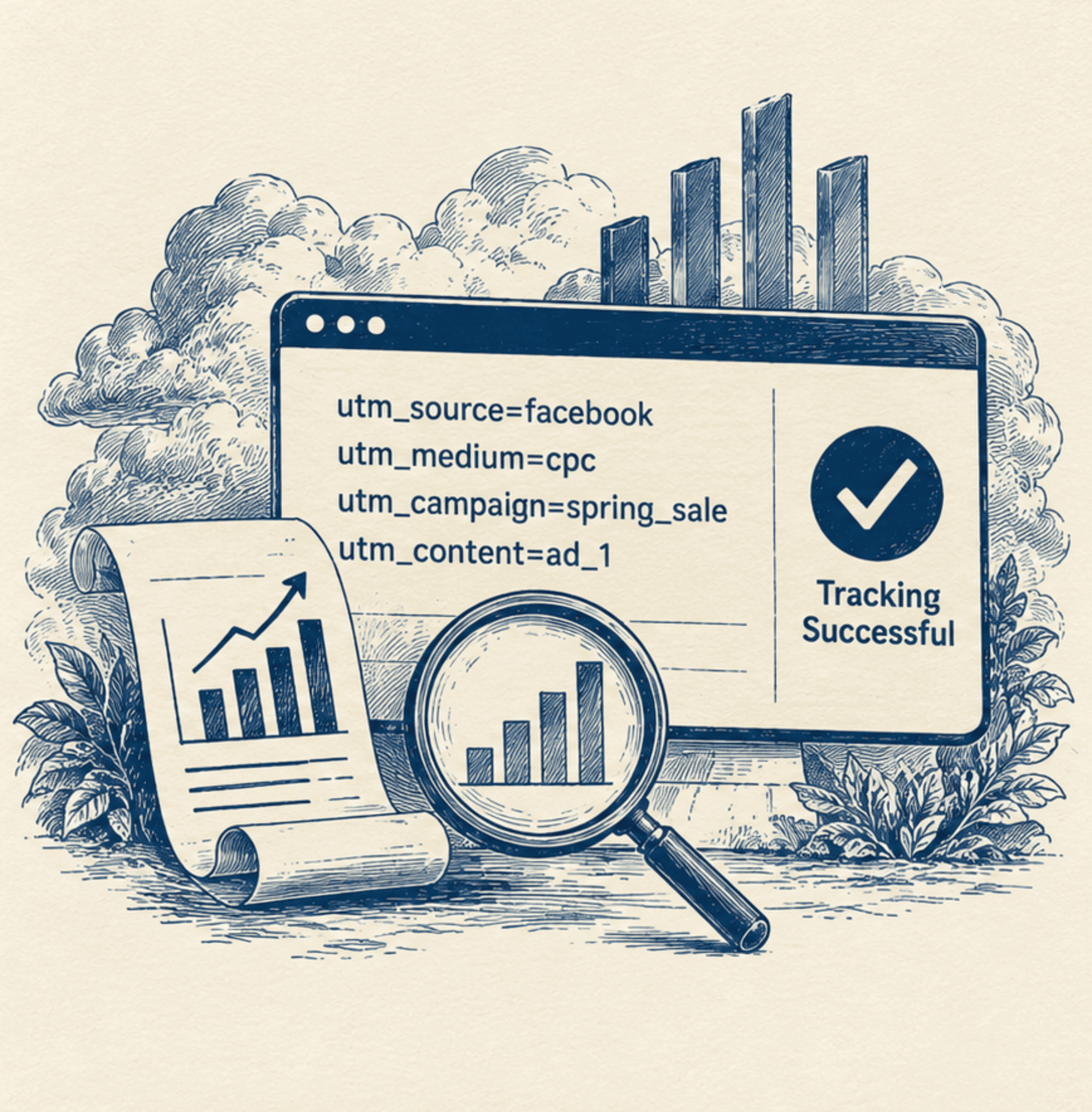
The cleanest way to track Meta ads in analytics is to keep utm_source and utm_medium fixed, let Meta's dynamic parameters fill in campaign and ad names, and lock every value to a lowercase controlled vocabulary. Done once per account and saved as a template, this removes most of the manual tagging errors that split one campaign into several rows in your reports.
This guide covers which UTM fields matter for Meta, copyable template strings using Meta's dynamic parameters, the naming rules agencies should lock, what breaks tracking, and a step-by-step audit. It focuses on tracking taxonomy and analytics hygiene. For how to label campaigns, ad sets, and ads inside Ads Manager, see our Meta ad naming conventions guide.
Key Takeaways
- UTMs feed your analytics, not Meta. They label website sessions in tools like GA4. They don't change ad delivery or Ads Manager attribution.
- Always set three fields. Google says to always use utm_source, utm_medium, and utm_campaign. Missing parameters show up as (not set) in reporting.
- Values are case sensitive. Meta and meta are different rows in GA4, so standardize on lowercase.
- Use dynamic parameters. Meta fills in {{campaign.name}}, {{ad.name}}, and IDs at click time, which removes manual entry.
- Use names for people, IDs for systems. Names make reports readable. Numeric IDs make joins to CRM and warehouse data reliable.
- Audit on a schedule. Most UTM problems are drift and typos, and both are cheap to catch weekly.
Which UTM fields matter for Meta ads
Google Analytics recognizes these campaign parameters, and the first three are required in practice (Google Analytics Help):
| Parameter | What it identifies | Recommended value for Meta paid social |
|---|---|---|
| utm_source | Where the traffic came from | {{site_source_name}} (returns values like fb or ig) or a fixed value such as meta |
| utm_medium | The type of channel | paid_social (keep it static) |
| utm_campaign | The campaign | {{campaign.name}} |
| utm_content | The specific creative | {{ad.name}} |
| utm_term | Paid keyword | Leave blank, since social ads have no keywords. Use {{adset.name}} only if ad set names describe the audience. |
| utm_id | A stable campaign ID | {{campaign.id}} |
Two points matter most for agencies:
- Pick one source convention and keep it. Google's guidance is one unique utm_source per platform. Splitting by fb and ig gives you placement-level detail. Using one meta value gives you simpler rollups. Either works if every account follows the same choice.
- Keep utm_medium static. A fixed value keeps channel grouping clean. A medium that changes from ad to ad fragments your reporting.
How to structure UTMs for Meta with dynamic parameters
Meta lets you add placeholders that it fills in when someone clicks. Meta's Business Help Center lists these dynamic parameters: {{campaign.id}}, {{campaign.name}}, {{adset.id}}, {{adset.name}}, {{ad.id}}, {{ad.name}}, and {{placement}} (Meta Business Help Center). A source tag, {{site_source_name}}, is also widely used and is mentioned in Google's own best practices.
Paste the string into the URL Parameters field at the ad level, without a leading question mark, and keep the website URL itself clean. If you build ads through the API, the same string goes in the creative's url_tags field (MetricFixer's Meta dynamic parameters reference).
Copyable templates
Standard website campaign (best default)
Standard website campaign (best default)
utm_source={{site_source_name}}&utm_medium=paid_social&utm_campaign={{campaign.name}}&utm_content={{ad.name}}&utm_id={{campaign.id}}&adset_id={{adset.id}}&ad_id={{ad.id}}&placement={{placement}}
Simple version (one source value for all Meta traffic)
utm_source=meta&utm_medium=paid_social&utm_campaign={{campaign.name}}&utm_content={{ad.name}}
Agency version (adds an ad set audience field)
utm_source={{site_source_name}}&utm_medium=paid_social&utm_campaign={{campaign.name}}&utm_term={{adset.name}}&utm_content={{ad.name}}&utm_id={{campaign.id}}&ad_id={{ad.id}}
Use the agency version only when your ad set names clearly describe the audience. If they're operational labels, skip utm_term and keep adset_id as a custom parameter instead.
Why add ID parameters?Names can change or be duplicated. Numeric IDs like ad_id are stable, so they're the safer key when you match website sessions to a CRM or warehouse. Note that GA4 won't show custom parameters like ad_id in standard reports unless you capture them as custom dimensions.
How this connects to ad names
Because {{campaign.name}} and {{ad.name}} pull directly from Ads Manager, your UTMs are only as clean as your names. That's why the two systems need to be designed together. If names are messy, your UTMs will be too. Our naming conventions guide covers the schema that feeds these fields.
UTM naming rules agencies should lock
Agencies get into trouble when each buyer invents their own version of "facebook," "meta," or "paid social." Lock these rules once and apply them to every client.
Lowercase everything. GA4 treats SpringSale and Spring_Sale as different values, and Meta and meta as different values (Google Analytics Help).
Pick one delimiter. Use underscores. Don't mix underscores, hyphens, and spaces.
No spaces or special characters. They break links and create duplicate rows.
Use a controlled vocabulary per client. A locked list of accepted values for source, medium, and campaign type. For example, allow paid_social and nothing else for medium.
Keep source and medium stable. Put variation in utm_campaign and utm_content, not in source or medium.
Never tag internal links. UTMs belong on links from outside your site. Tagging internal links can start new sessions and distort metrics (University of Minnesota UTM guidelines).
Version your rules. If you change a convention, record the date and keep a mapping from old values to new ones.
The one-page governance document
Put the following in a single shared page and link it in your onboarding and launch SOPs:
- The approved values for utm_source and utm_medium
- The exact template string for each ad type
- Casing and delimiter rules
- Client codes and the naming schema that feeds utm_campaign
- Who owns changes, and how changes are announced
- The audit schedule
If a new hire can't explain your convention in one sentence, it's too loose.
Do UTMs affect Meta reporting?
No. UTMs supply your analytics platform, not Meta's delivery system or Ads Manager attribution.
- Ad delivery: UTMs don't change who sees your ads or how Meta optimizes.
- Ads Manager numbers: Meta reports results from its own tracking, like the Pixel and Conversions API. Adding UTMs doesn't change those numbers.
- Analytics reports: UTMs are what let GA4 and similar tools label website sessions by campaign, creative, and source.
This is why Ads Manager and GA4 rarely match exactly. They count differently and use different attribution rules. UTMs make the GA4 side readable. They don't make the two systems agree.
Meta also adds some parameters on its own. Its Help Center notes that ad URLs automatically include source (Facebook or Instagram), medium (paid), and ad, campaign, and ad set IDs. If you add your own UTMs, set them deliberately so they follow your taxonomy instead of Meta's defaults.
What breaks UTM tracking in ads
When UTM data looks wrong, the cause is usually one of these:
| Problem | What you'll see | Fix |
|---|---|---|
| Redirects strip the query string | Traffic shows as direct or (not set) | Click through the real ad path and confirm the final landing URL still has every parameter |
| Missing parameters | (not set) values in reports | Always set source, medium, and campaign. Google recommends setting all relevant UTMs once you set one (Google Analytics Help) |
| Case inconsistencies | One campaign split across several rows | Standardize on lowercase and validate before launch |
| Dynamic medium values | Channel grouping fragments | Keep utm_medium a fixed value |
| Placeholders left unresolved | Literal {{campaign.name}} text in reports | Test the real click path, since previews may not resolve tokens |
| Duplicate parameters in two fields | Conflicting or doubled values | Keep the website URL clean and put tracking in the URL Parameters field only |
| Post-launch edits | Values change mid-flight and split history | Avoid renaming live campaigns. Tag legacy campaigns separately instead |
| Tagging internal links | Inflated sessions and broken source data | Use UTMs on external links only |
| Non-website destinations | No UTM data at all | UTMs only help when the ad lands on a normal website page. Instant Forms, messaging, and direct app installs need other measurement |
Post-launch edits deserve extra care. Renaming a campaign changes what {{campaign.name}} returns, so the same campaign can show up under two names in your analytics. If you must rename, record the change and map old values to new ones.
How to audit messy UTM naming
Run this audit on any account you inherit, and then monthly on active ones.
Export the data. Pull campaign, source, and medium values from GA4's Traffic acquisition report for the last 30 to 90 days.
List every distinct value. Sort alphabetically so near-duplicates sit side by side.
Flag the offenders. Look for case differences, spelling variants (facebook, fb, Facebook), hyphen versus underscore mixes, and spaces.
Check for (not set) and unexpected direct traffic. These point to missing parameters or stripped query strings.
Compare against your vocabulary. Mark every value that isn't on your approved list.
Map old to new. Build a simple table of messy value to correct value. Use it to merge rows in reporting (for example, with a custom channel group or a spreadsheet mapping).
Fix the source. Update the templates, saved launch settings, and any shared sheets so the same errors don't recur.
Test a live click. Launch or click one ad and check the final URL after redirects.
Document the changes. Add the date and the mapping to your governance page.
Schedule the next audit. A weekly spot-check of new launches takes minutes. A monthly full review catches slower drift.
Fix forward rather than rewriting history. You can't edit past sessions in GA4, so the mapping table is how you keep old and new data comparable.
How to keep UTMs consistent at launch
Most UTM errors happen at the moment of launch, when someone pastes a string by hand. The fix is to take the decision away from the person launching.
- Save one UTM template per ad account. Source, medium, and the dynamic parameters should auto-populate on every ad.
- Standardize across clients. Use the same structure everywhere and change only the client code and approved values.
- Validate before publishing. Check lowercase, delimiters, and that every required parameter is present.
- Preview one ad per batch. Don't mass-launch until one ad's final URL looks right.
Blip lets you save copy, CTAs, UTMs, and naming conventions as reusable templates and apply them across ad accounts, so every launch starts from the same tracking setup. See how it works in our bulk ad launcher, and read our naming conventions guide for the schema these templates should follow. If you manage many accounts, our agency multi-account guide covers the wider workflow.
FAQ
When should ads use UTMs?
Use UTMs on any ad that sends people to a page on your website, so your analytics can attribute the session to a campaign and creative. They're less useful for Instant Forms, messaging ads, or direct app installs, where there's no normal website landing session.
How do I structure UTMs for Meta?
Keep utm_source and utm_medium fixed, such as meta or {{site_source_name}} and paid_social. Use {{campaign.name}} for utm_campaign and {{ad.name}} for utm_content, then add {{campaign.id}} in utm_id for a stable join key. Put the string in the ad's URL Parameters field.
How should agencies structure campaign UTMs?
Use one template per client account with the same fields and delimiters across every account. Lock a controlled vocabulary for source and medium, put variation only in campaign and content, and let a client code in your campaign naming identify the account.
How do I track ad variants with UTMs?
Use utm_content for the specific creative. Setting it to {{ad.name}} means each variant carries its own label automatically. Add {{ad.id}} as a custom parameter if ad names are inconsistent or get renamed, since IDs don't change.
Do UTMs affect Meta reporting?
No. UTMs feed your analytics tool, like GA4. They don't change ad delivery, optimization, or the results Meta reports in Ads Manager.
Do UTMs affect ad performance?
No. Meta's delivery system doesn't use them. They only label the traffic after the click.
What breaks UTM tracking in ads?
The most common causes are redirects that strip parameters, missing required fields, mixed capitalization, dynamic values in utm_medium, unresolved placeholders, and renaming live campaigns. Click through a real ad and check the final URL to find which one applies.
How do I audit messy UTM naming?
Export your source, medium, and campaign values from GA4, sort them to spot near-duplicates, compare them to your approved vocabulary, build a mapping from messy to correct values, then fix the templates that created them. Repeat monthly.
What are the right UTM values for Meta ads?
A common standard is utm_source=meta (or {{site_source_name}}), utm_medium=paid_social, utm_campaign={{campaign.name}}, and utm_content={{ad.name}}. What matters most is that every account uses the same values.
Should UTM values be lowercase?
Yes. Google Analytics treats values as case sensitive, so Meta and meta become separate rows. Lowercase everywhere is the simplest way to avoid that.
Keep tracking clean from the first launch
A reliable UTM setup comes down to a small set of fixed values, dynamic parameters for the rest, and a template that nobody has to retype. Lock the rules once, save them per account, and audit on a schedule. If you launch ads in volume across several accounts, Blip's bulk ad launcher lets you save UTM and naming templates once and reuse them on every launch.
Related posts

Best Server-Side Tracking Tools (Tested, Compared, Ranked)
A comprehensive guide comparing the top server-side tracking tools—from direct server-to-server solutions like Able CDP to managed sGTM hosting and enterprise data pipelines—to help you capture accurate ad attribution and conversion data.

Value-Based Optimization on Meta: Bidding on LTV, Not Just Conversions
Raw ROAS optimization rewards cheap conversions, not valuable customers. Learn how to set up Value-Based Optimization on Meta to bid toward LTV.

Incrementality Testing and Holdout Groups: Proving Meta Ads Actually Work
Platform ROAS overstates results. Learn how conversion lift studies and holdout groups prove which Meta ads actually drive incremental revenue.